If a vehicle software update appears after a map update, is the same job being repeated? Hyundai's October 2026 notices show that maps and vehicle systems are updated separately. To identify the relevant task, look first at the applicable vehicle and the update item, rather than the notice date.
A map update notice was published on October 8, followed by a vehicle software update notice for the Kona and Kona Hybrid on October 14. The first concerns map data and how it is applied; the second concerns improvements to the connected-car communication controller, or DCU. Separating maps, vehicle controllers and delivery methods clarifies when removable media is relevant and when to wait for a vehicle notification.
Different updates in the same month
The October map notice covers address and road changes. It also says that vehicles equipped with real-time online navigation receive current road information automatically. That statement should not be extended to every map and every piece of software in every Hyundai. The vehicle must have the relevant feature.
The Kona notice identifies model years 2023–2027 Kona (SX2) and Kona Hybrid (SX2KH). Distribution begins on October 14 and continues in stages until completion, so the start and finish can vary by vehicle. The stated improvement concerns communication stability. The shared Kona name alone does not establish eligibility for another generation or the Kona Electric.
| Category | What changes | What determines applicability |
|---|---|---|
| Maps and infotainment | Map data and navigation software | Vehicle-specific lookup and platform media |
| Vehicle-system OTA | The controller named in the notice | Vehicle, model year, update item and notification |
| Real-time online maps | Road data in equipped vehicles | Support for the specific feature |
OTA describes delivery; maps describe content
OTA describes wireless software delivery. The term alone does not identify what changes. The notice must distinguish an update to navigation maps or infotainment from an update to a vehicle controller. A current map version does not establish that the DCU is also current.
Hyundai's OTA guide directs owners to check vehicle support and Bluelink equipment and subscription status. Communication conditions and vehicle status can also affect download timing. Another owner's notification alone is not enough to diagnose a fault. The useful comparison is the notice for the same market, model year and specification, together with the status displayed in the vehicle.
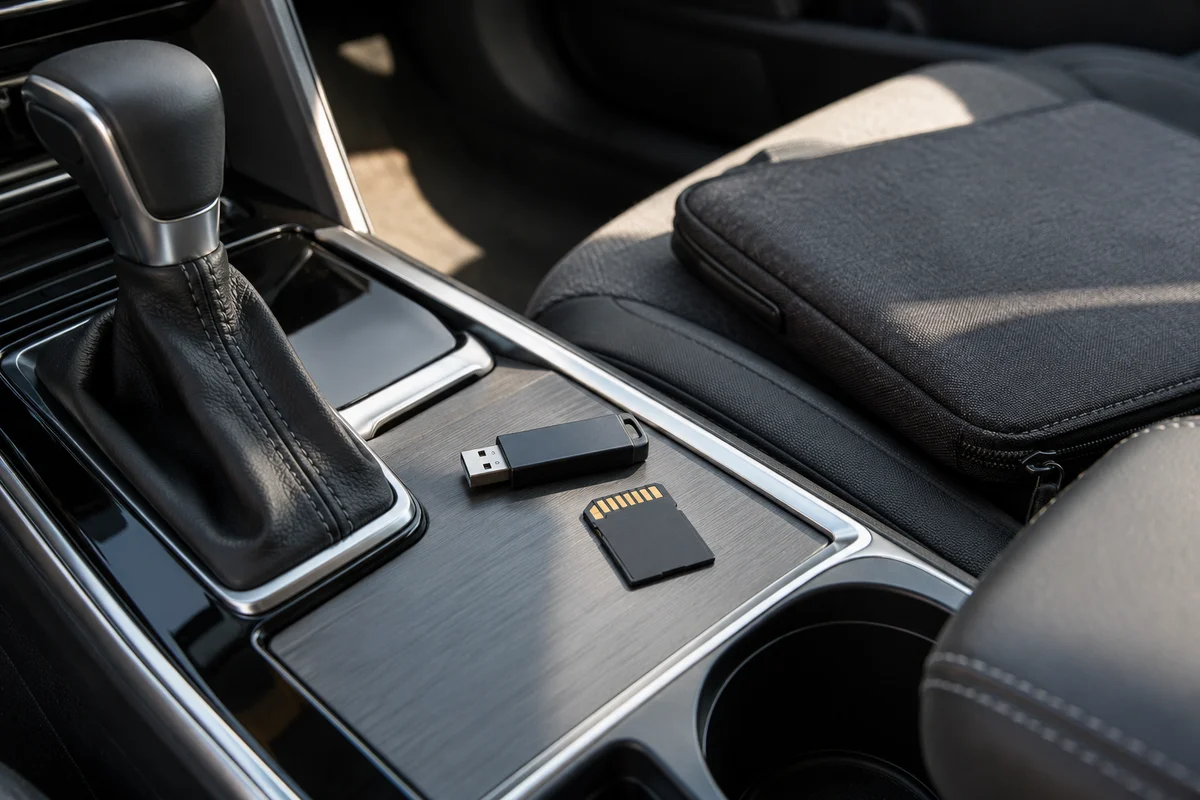
The platform determines USB or SD
Searching only a vehicle name can lead to a file for a different model year or specification. Use the official vehicle-specific update lookup to find the appropriate software, then compare it with the model and software information in the vehicle's settings. Platforms such as ccNC, Standard Gen5W and Standard Gen5 differ in media and procedure.
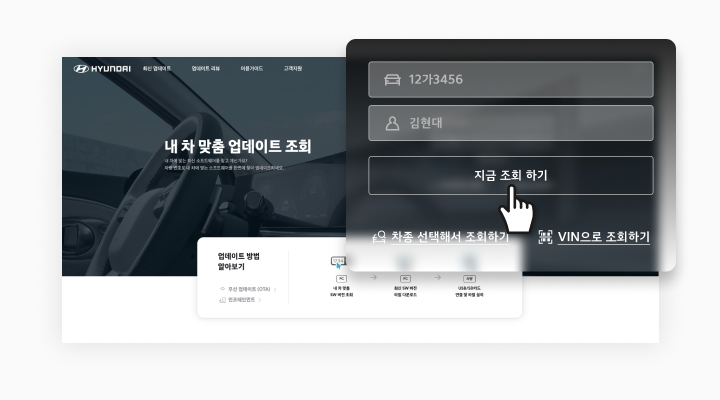 Hyundai official update guide
The general official guide lists USB for platforms including ccNC and Standard Gen5W, and SD for platforms including Standard Gen5. The English manual for the Korean-market Standard Gen5 system also specifies the system's SD card and says a USB storage device cannot be used for updates. A newer USB drive does not convert an SD-based system to USB updating.
The general guide recommends a 32 GB USB drive or SD card and the exFAT file system. Some navigation systems use USB Type-C. These recommendations are a starting point; the download size and instructions for the specific platform remain decisive. A single USB specification should not be assumed to fit every vehicle.
Applying the update after the PC download
A manual update includes both downloading files on a PC and applying them in the vehicle. Select the vehicle and storage location in Navigation Updater. If the files were saved to the PC, copy them to USB afterward. If removable storage was selected as the final destination, the separate copy step can be skipped. A completed download does not mean the vehicle has been updated.
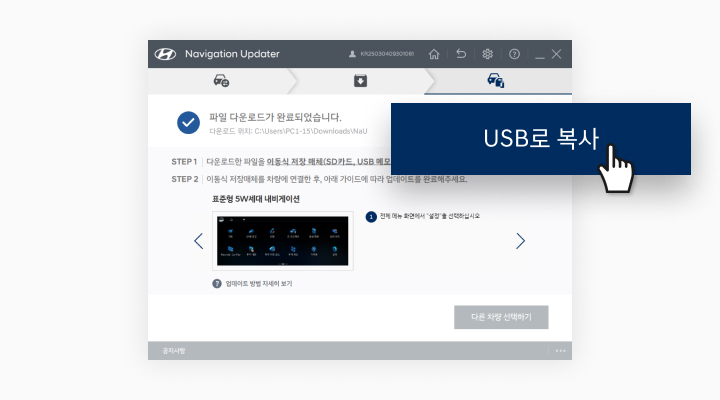 Hyundai official update guide
The October map notice distinguishes SD systems, which apply the map from a card containing current data, from USB systems, which require installation following the on-screen instructions. The general guide also retains update-button procedures for older SD platforms. The October map description should therefore be read alongside the specific platform's instructions, rather than treated as a universal procedure for installing all software on every older SD system.
Power conditions and Kona-specific precautions
Interrupting power or removing media during a manual navigation installation can damage data or cause a malfunction. A vehicle-system OTA procedure may instead begin after the vehicle is turned off. There is no single keep-the-engine-running rule for every update. The actual vehicle screen and the instructions for that update govern the procedure.
The Kona notice warns that an additional device connected to the diagnostic communication port can interfere with internal communication. It instructs owners to disconnect such devices, drive for at least 30 minutes, then turn the vehicle off to update. For vehicles with a history of battery disconnection or removal, it gives a separate condition: disconnect the power to additionally fitted electrical equipment, park with the vehicle off for at least four hours, then update after the next drive. These are conditions in the applicable notice, not universal instructions for every vehicle.
During installation, avoid the power operations and media removal prohibited by the applicable instructions. Navigation and camera functions may temporarily be unavailable, and completion may be confirmed by a restart and updated version information. Scheduling the job when the vehicle is not immediately needed reduces the chance of having to leave during installation. Installation time varies with the data and vehicle conditions; a fixed duration cannot be guaranteed.
If a notification does not arrive or the version differs from expectations, compare eligibility, the installed version and rollout status first. The Kona notice also says that an earlier software version may be installed as part of reaching the current version. Rather than repeatedly installing the same file or forcibly switching off power, record the error message and vehicle information for official support.
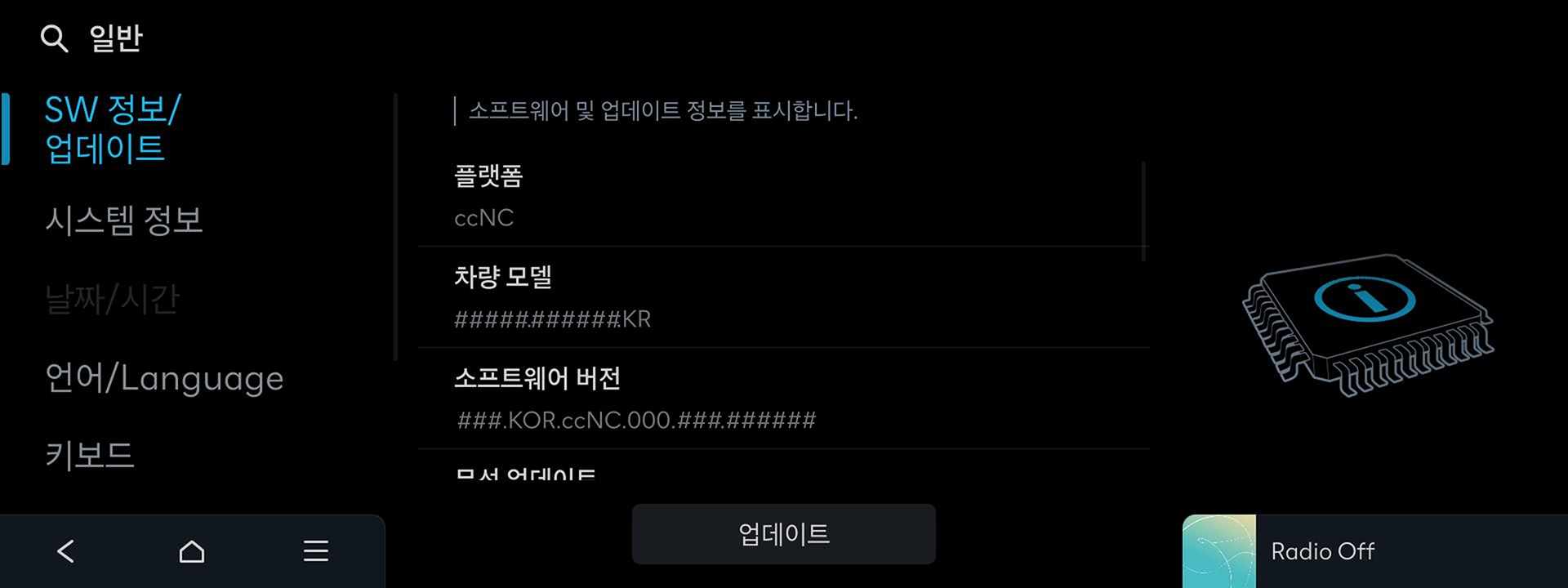 Hyundai official update guide
A single update-complete message does not settle every task this month. For map changes, identify the navigation platform and media. For a vehicle-system notification, identify the controller and applicable vehicle conditions. Distinguishing files downloaded, data applied in the vehicle and the displayed final version clarifies the next action.
Sources reviewed
The article was checked against the sources below. Image context and credits appear in each caption.